Manabit
Level Up Your Pixel Art
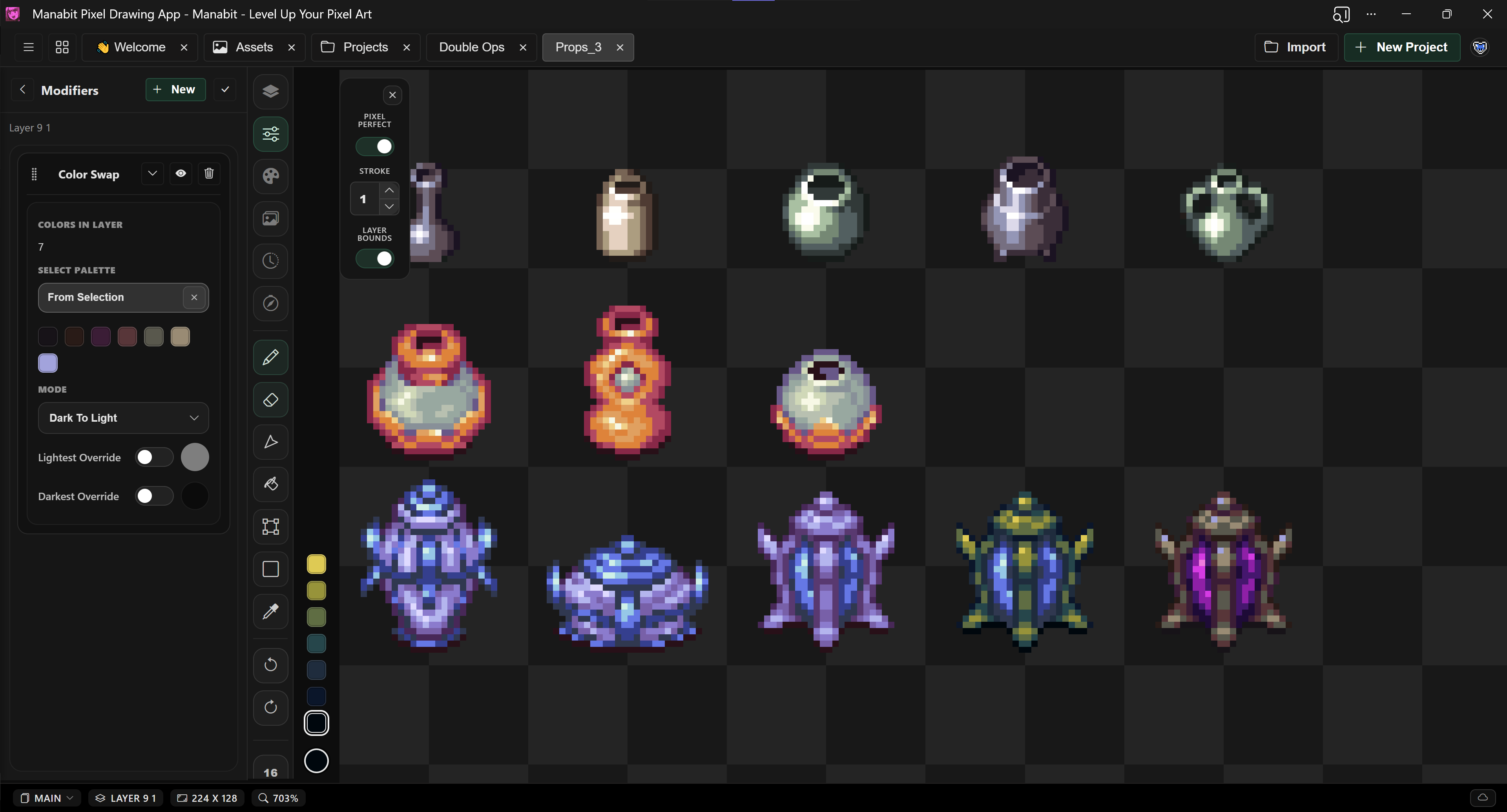
A powerful pixel art editor built for artists and indie game devs. Create stunning pixel art and game assets with cloud sync, layer modifiers, palette management and more advanced features to help you craft beautiful art.
coldfox
Manabit
Level Up Your Pixel Art
coldfox
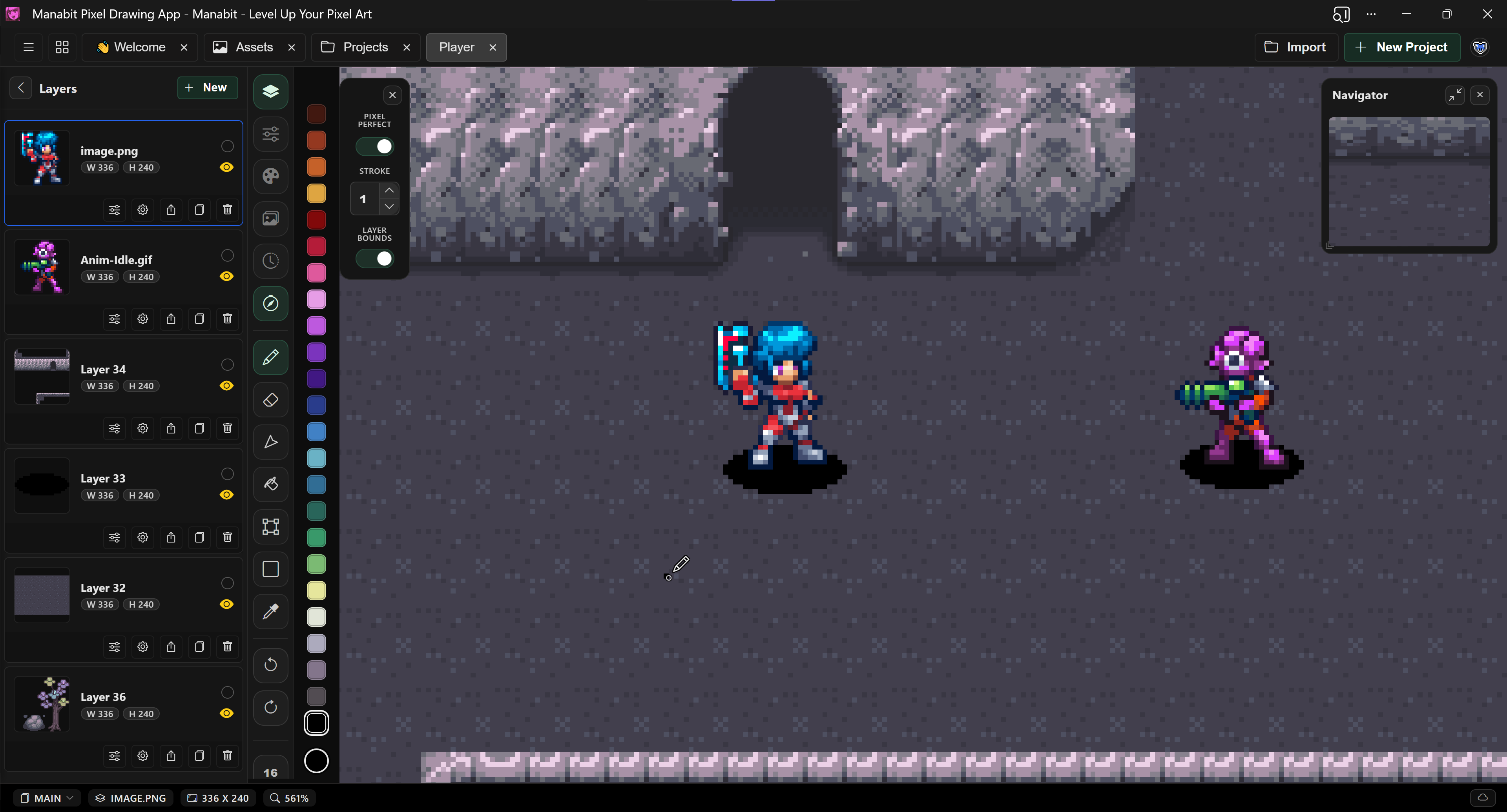
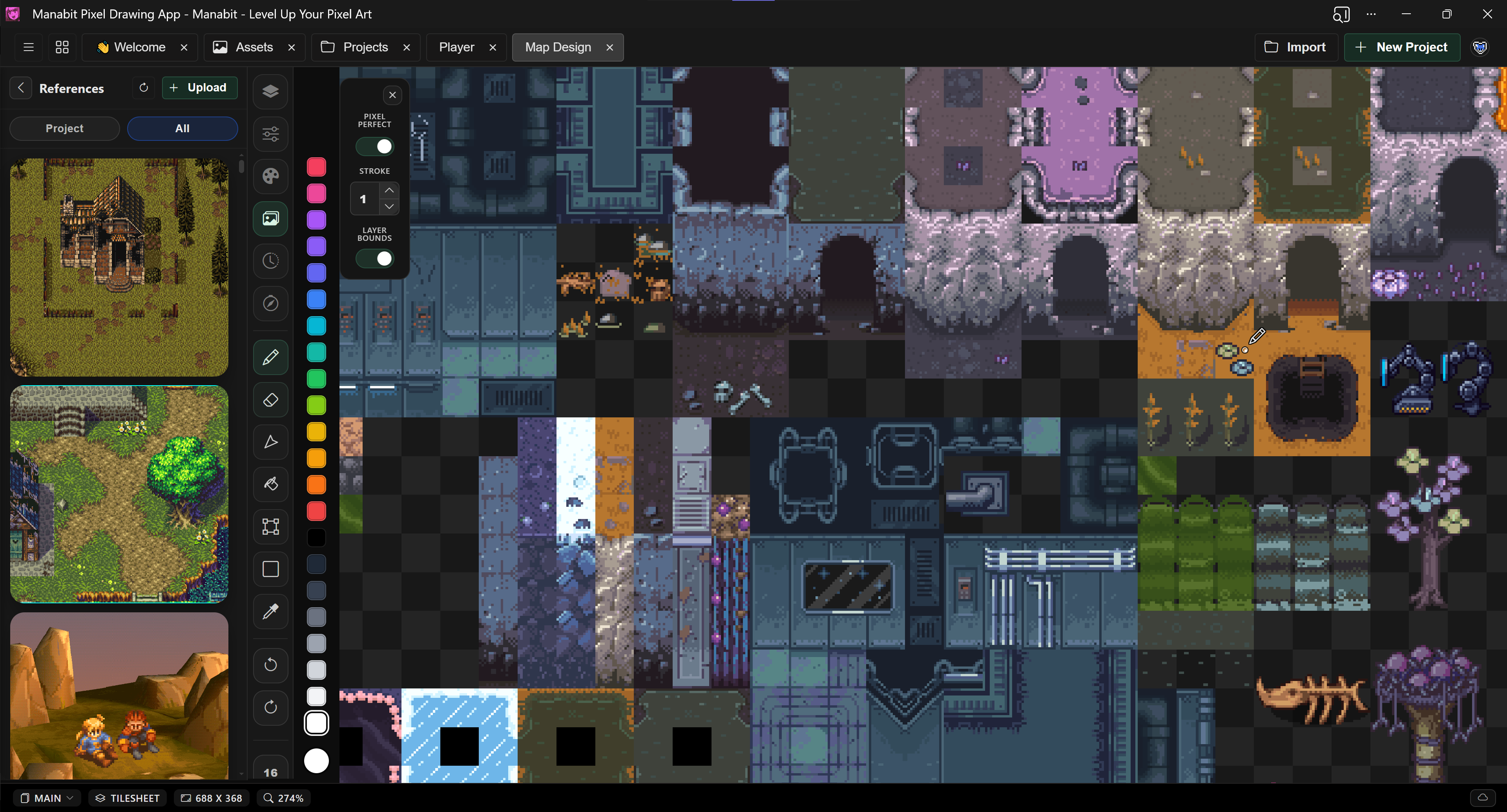
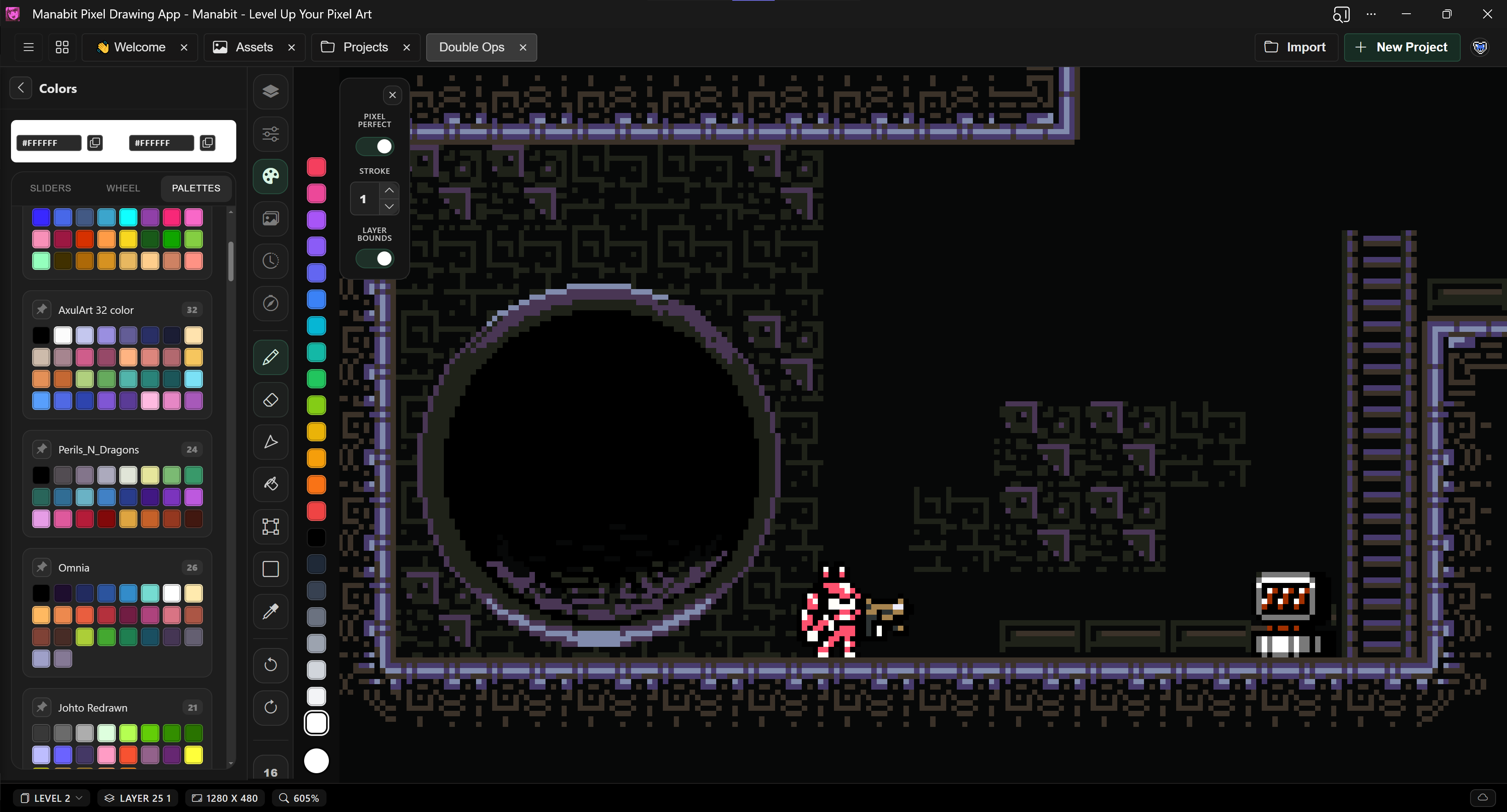
Manabit is a pixel art editor built for artists to create pixel art and game assets. In addition to the main pixel art tools, we're taking things one step futher with project cloud sync, layer modifiers, palette management and more advanced features to get you crafting more beautiful pixel art.
Hint of the day
Install Manabit for a fullscreen, app-like experience on iPad and desktop. And easily synchronize between all devices.
How To Install:
How To Install:
Warning: You may work on projects offline, as your progress will be saved on your device, but make sure you have enough storage space and try to make backups regularly.
Release notes and progress updates for Manabit.
Buttons, inputs, cards, and overlays tuned for the pixel editor experience. Drop-in, dark-mode ready, and built on a minimal token set.
Primary, secondary, ghost, icon-only, and size variants.
Text, search, select, textarea, and toggle states.
Custom dropdown component with jQuery support for reusable select menus.
Custom dropdown with multi-select support and selected value summary.
Swatches, color selectors, number inputs, sliders, tabs, and panels used in the canvas interface.
Color swatch buttons from the swatches panel
Color button from modifiers panel
Enhanced number inputs with spinners
HSV sliders with gradients from color panel
Picker tabs from color panel
Palette selector button from modifiers panel
Example panel structure similar to swatches-picker
Panel content area
Media-first cards with tall and wide variations.
Universal drag engine: ghost + placeholder + drop zones (vertical / horizontal / grid / cross-zone).
Dimmed overlay with panel, header, content, and footer actions.
Overlays use `.overlay.hidden|visible` toggles, `.panel` sizing, and `.close-button` affordances. Footer actions align end by default.
Autosave will also cache layers, positions, and file pixels for quick reloads.
No shortcuts listed for this tool yet.
Draw pixels on the active layer.
When on and a selection is active, you can draw outside the selection but on commit only pixels inside the selection are kept.
When on, strokes are clipped to the active layer's recorded bounds. When off, strokes can paint anywhere and the layer bounds grow to include new pixels.
Erase pixels on the active layer.
When on and a selection is active, you can erase outside the selection but on commit only changes inside the selection are kept.
When on, erase is clipped to the active layer's recorded bounds.
Mirror pencil and eraser strokes across an axis line on the canvas.
Flood-fill the active layer from the clicked pixel.
When on and a selection is active, fills stay inside the selection.
When on, fill stops at edges and only spreads through touching pixels of the same color. When off, every matching pixel on the layer is filled (including separate areas).
Higher tolerance fills pixels with similar colors (useful for anti-aliased edges). 0 requires an exact color match.
Bleeds the filled region outward by this many pixels after the flood fill (0 = no bleed). Selection/layer limits are also expanded by the same amount when a selection is active.
When on, the fill follows visible color (all layers with visibility on and opacity above 0) but only paints empty pixels on the active layer. Lines or shapes that change the visible color stop the flood; same-color pixels on other layers do not.
Place tiles from Map Builder onto the canvas grid. In Map Builder, switch to Draw mode and select a tile, then click or drag on the canvas. Shift erases; Ctrl+drag fills or clears a rectangle of cells. The Map Builder panel opens when you start placing.
Size, opacity, and brush options live in the tool options bar above the canvas.
Drag on the canvas to draw a rectangular selection.
When Layer bounds is off, moving pixels past the layer edge expands the layer to fit (vector and marquee selection).
When off, selects all matching colors on the active layer.
Primary, secondary, ghost, icon-only, and size variants.