Download
 Browser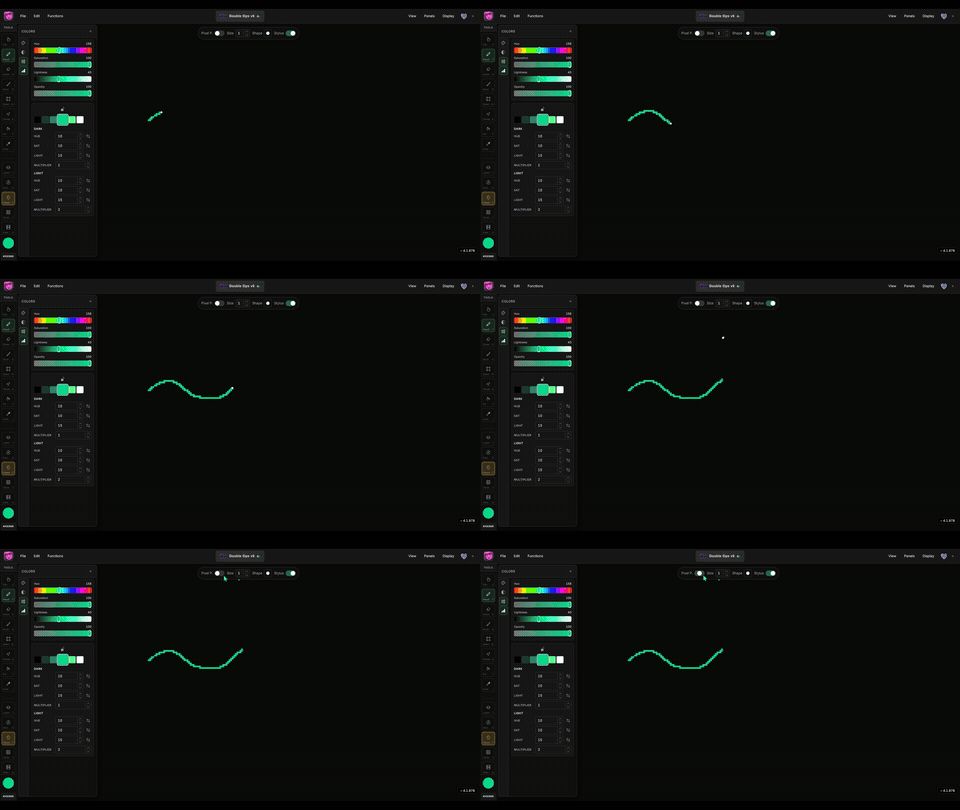
Pixel art outlines fall apart when freehand 1px strokes pick up extra corner pixels on diagonals. Manabit’s Pixel Perfect pencil mode keeps those lines thin — and the clip above shows the difference with the toggle on and off.
What you'll learn
- How chunky corner pixels appear when Pixel Perfect is off.
- How the same stroke stays a true 1px line with Pixel Perfect on.
- When to enable it for outlines vs filling and touch-up work.
Steps
- Select the Pencil tool (
E). - Set brush Size to 1.
- Draw a freehand curve or diagonal with Pixel P. off — notice the thick L-shaped corners.
- Enable Pixel P. in the tool options and draw the same stroke again.
- Compare the two lines: Pixel Perfect holds corner pixels back so the stroke stays thin.

Tips
- Pixel Perfect applies at size 1 only.
- It eases off when you paint over existing pixels, so you can fill and touch up freely.
- Pair with the pencil Stabilizer if you want smoother input while the algorithm cleans corners.
- Full reference: Draw Pixel-Perfect Lines.