Download
 Browser
Overview
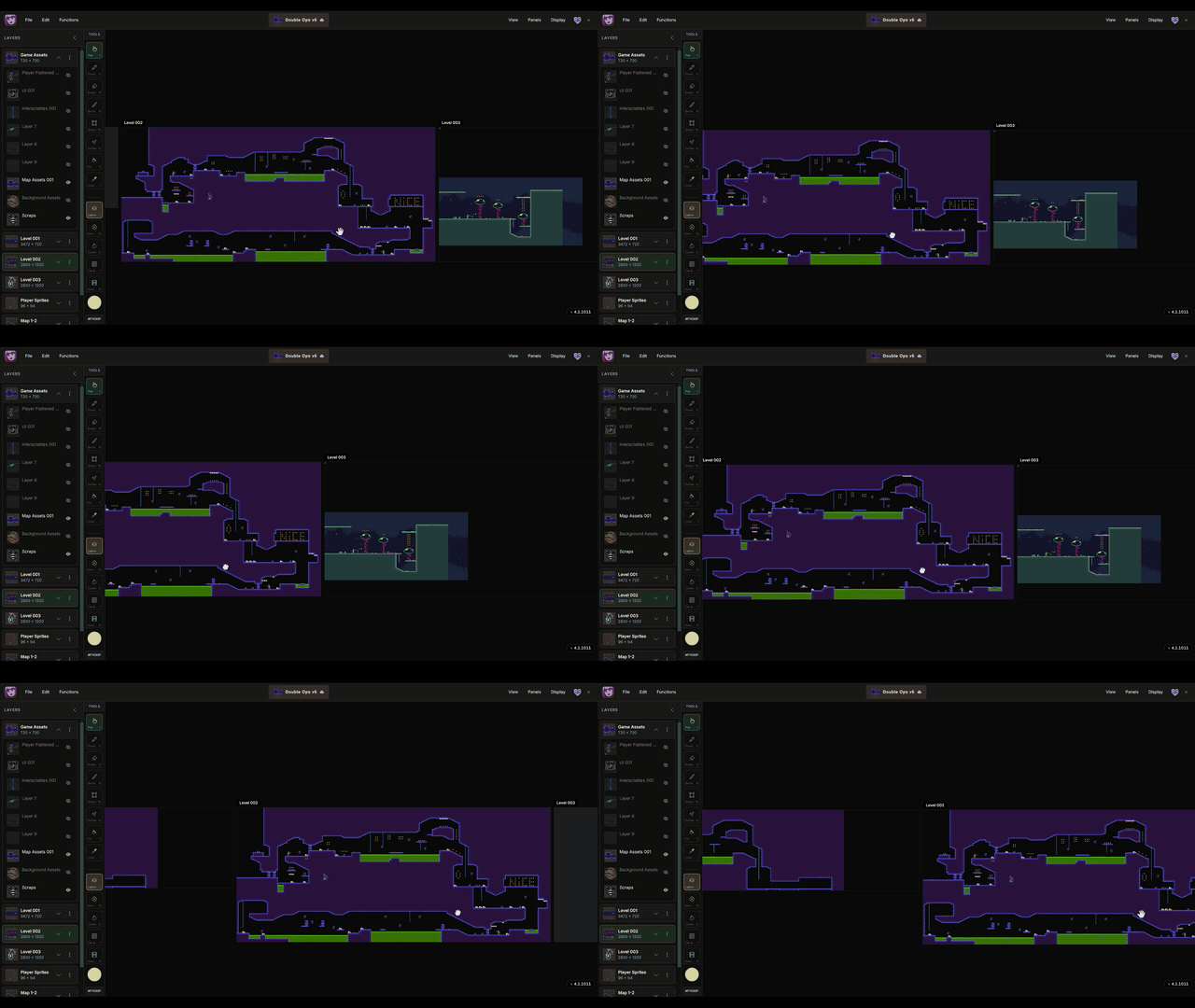
The clip in the header shows stages in action — switching between canvases in one project and resizing a stage when you need more room.
Working with stages
- New projects start with one stage at your chosen dimensions.
- Press
[and]to cycle between stages. - Add stages from the stage menu when you need separate canvases in one file.
Resize
- Select the Pointer tool (
Q). - Click the stage row in the layers panel.
- Drag the eight resize handles on the canvas overlay.
Existing pixels stay in place when you expand or shrink the stage bounds.