Download
 Browser
Overview
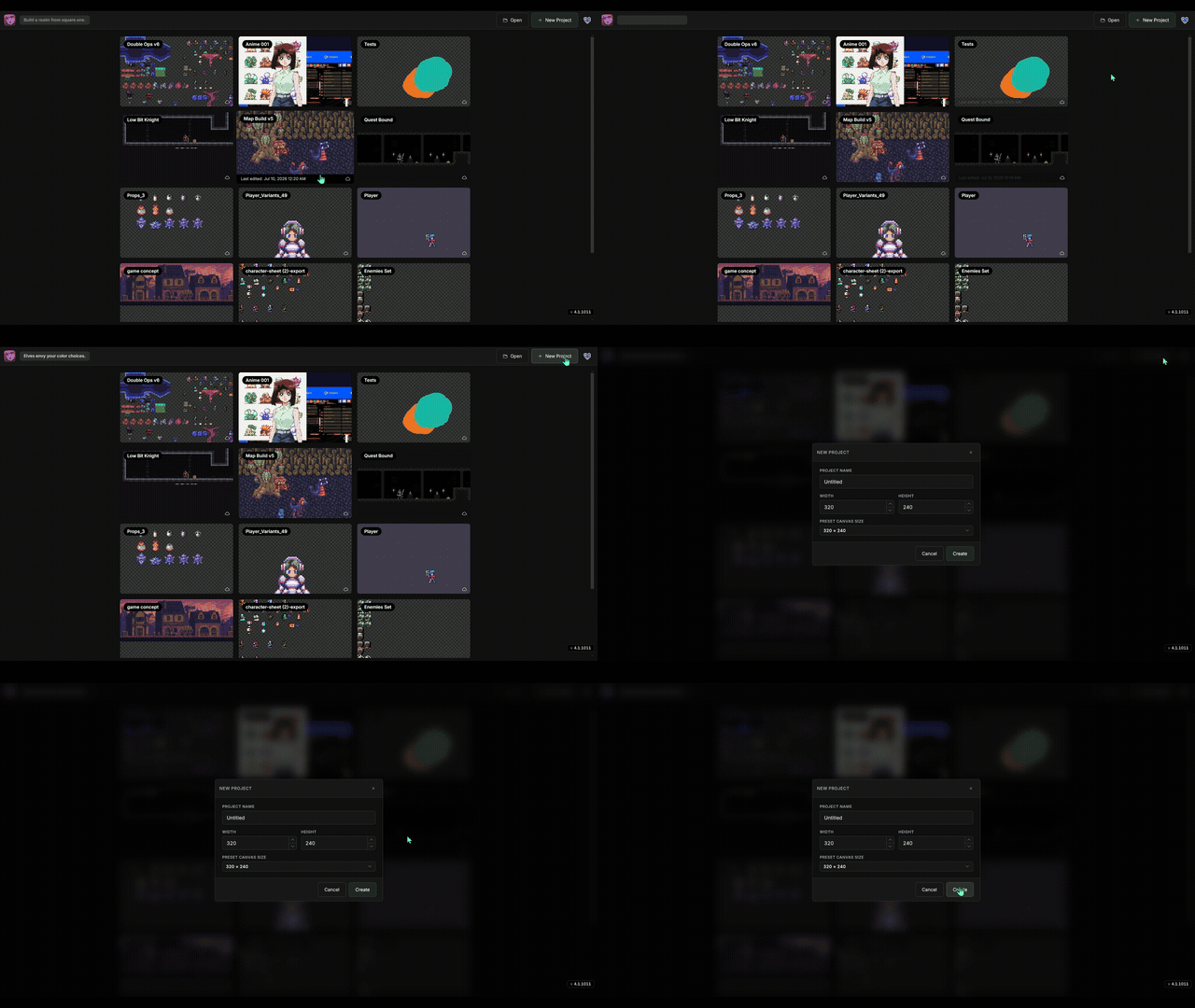
The clip in the header shows creating a project from the startup screen — naming it, choosing a canvas size, and opening the editor.
Open the new project dialog
- From the startup screen, click New Project in the header or in the empty state.
Set name and canvas size
- Project name — defaults to Untitled; you can rename it anytime from the project header.
- Width and Height — default is 320 × 240 pixels (range 1–4200).
- Preset Canvas Size — pick common sizes such as 32×32, 64×64, 128×128, 256×256, 512×512, or 1920×1080.
- Click Create to open the editor.
What you get
- One stage (Stage 1) at your chosen dimensions.
- One layer (Layer 1) ready for pixels.
- The full project interface — canvas, tools, and layers panel.
Other ways to start
- Open — import an existing image, Manabit project, Aseprite file, or Photoshop file.
- Drag and drop supported files onto the startup screen to open them directly.
- Click a recent project card to continue where you left off.