Download
 Browser
Overview
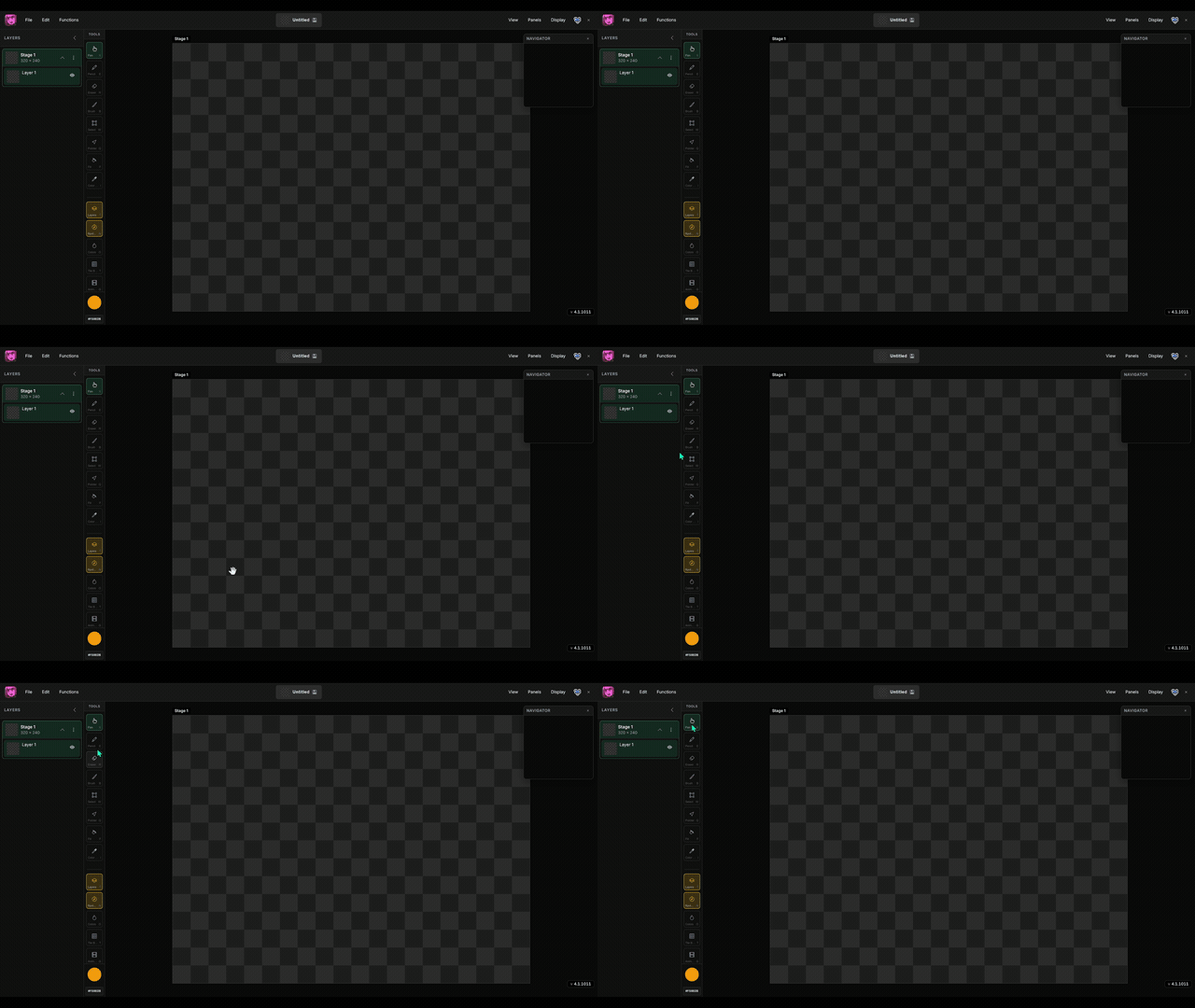
The clip in the header shows the project UI — header, canvas, layers, tools, and floating panels.
Header
- Logo — returns to the Manabit home page.
- Project title — click to rename; a thumbnail preview updates as you draw.
- Local / cloud badge — shows where the project is stored and whether you have unsaved changes.
- Account icon — sign in, sign out, or view your email when cloud is enabled.
Menu bar
On desktop, menus run across the header:
- File — open, save, import, export, cloud upload/download, preferences.
- Edit — undo, redo, cut, copy, paste, and editing actions.
- Functions — project-level utilities and workflows.
- View — zoom, fit, and canvas display options.
- Panels — show or hide floating tool panels.
- Display — grid, checker background, anti-alias, and stage labels.
On smaller screens, these roll into a single Menu dropdown.
Canvas (center)
- Your pixel artwork lives here — pan, zoom, draw, and select on the active stage.
- Tool options appear in a compact bar above the canvas when a tool needs settings.
Left dock — Layers & Tools
- Layers — stages, layer list, visibility toggles, and thumbnails. Open by default on desktop.
- Tools — pencil, eraser, brush, select, fill, eyedropper, pan, and pointer. The active color swatch opens the color editor.
Floating panels
Open these from the Panels menu or tool toggles when you need them:
- Navigator — mini-map for jumping around large canvases.
- Palettes — saved color sets for consistent pixel art.
- Colors — full color picker and hex input.
- Tile Builder — tile categories and stamping for tileset work.
- Animations — frames and preview for sprite animation.
- History — browse undo history.