Download
 Browser
Overview
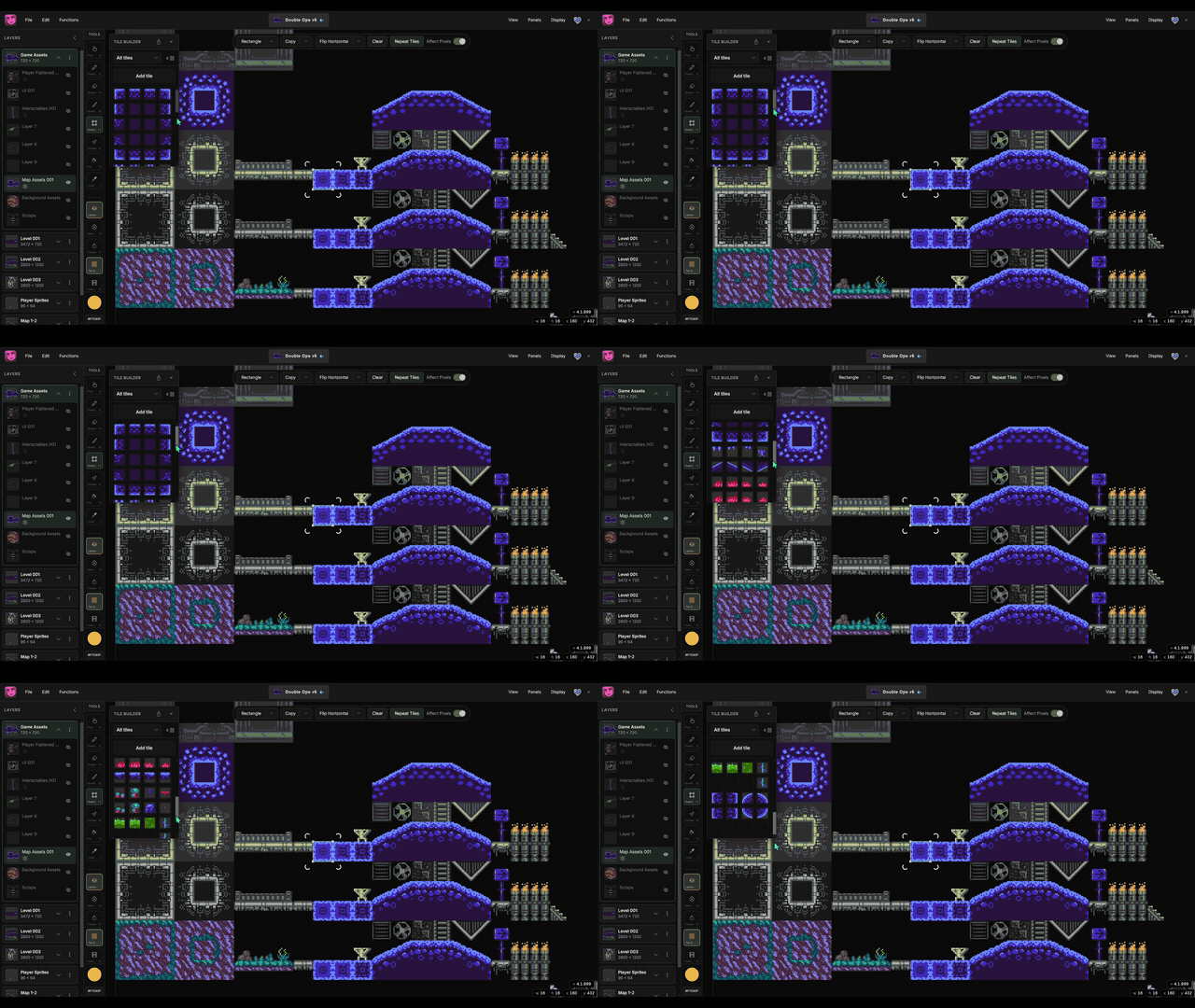
The clip in the header shows Map Builder in use — capturing tiles and painting a layout with the brush.
- Open it from the Panels menu, the tools panel toggle, or press
T. - Click a tile in the grid to select it for the Brush tool.
- Use Add tile after selecting a region on the canvas to capture new art into the library.
What you see in the panel
- Category filter — show all tiles or focus on one category.
- Columns — adjust how many tiles appear per row in the grid.
- Tile grid — thumbnails for every tile on the active layer; drag to reorder.
- Lock to current layer — pin the panel to one layer's tile library. Switch to another layer and stamp those tiles with the brush — useful when tileset art and painted layout live on separate layers.
Each layer has its own tile library. Switch layers to edit a different set, or lock the panel to keep one layer's tiles available while you paint on any other layer.
For workflows — blocking levels, building tilesets incrementally, syncing art changes across a map, and exporting to your game engine — see Build Maps Quickly.