Download
 Browser
Overview
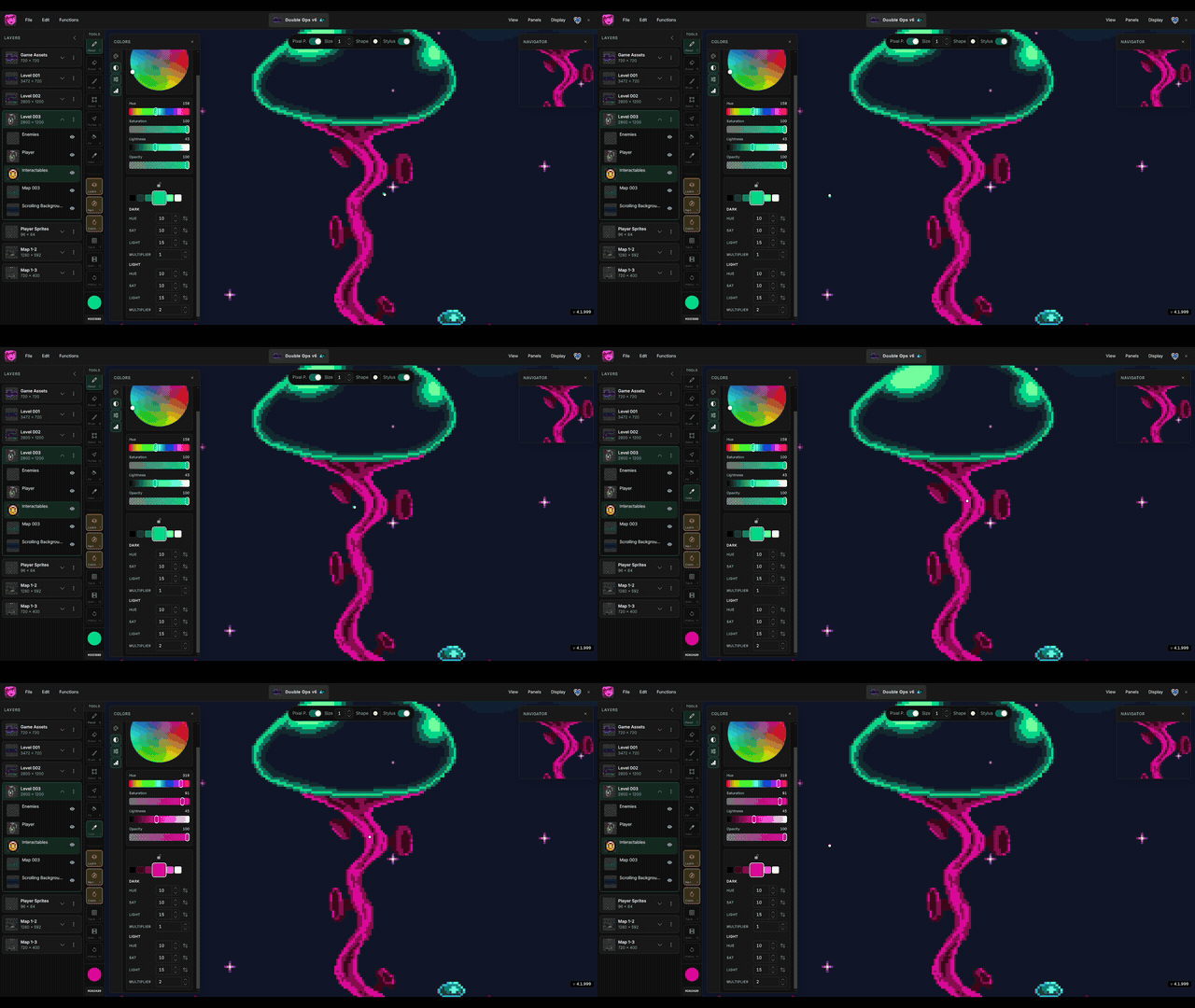
The clip in the header shows Hue Shifter generating a ramp and picking variants while painting.
Open it
- Open the Colors panel from the Panels menu or press
O. - Select the Hue Shift tab.
- Pick a base color from the Palette, Sliders, or Wheel tab first — Hue Shifter uses the active color as its starting point.
How the strip works
A row of swatches shows your base color in the center, with darker variants to the left and lighter variants to the right. Click any swatch to set it as the active drawing color.
- Lock — pin the center color as an anchor. The strip keeps generating from that locked color while you paint with variants.
- Unlock — the strip follows the active color again as you pick new hues.
Dark and light controls
Each side of the strip has its own Hue, Saturation, Lightness, and Multiplier steps. Raise a step to push variants farther from the base; use reverse toggles to flip the direction of hue, sat, or light shifts.
- Hue — how far each step rotates around the color wheel.
- Sat — how much saturation changes per step.
- Light — how much lightness changes per step.
- Multiplier — scales all steps on that side for stronger or softer ramps.
When to use it
- Character shading — keep skin, cloth, and metal shadows on the same hue family.
- Environment ramps — build grass, stone, and water values that feel like one scene.
- Palette exploration — lock a brand color and sample light/dark options before committing to a ramp.
See the Colors panel page for Palette, Sliders, and Wheel tabs, and the tutorial How to hue-shift pixel art palettes for workflow tips.