Download
 Browser
Overview
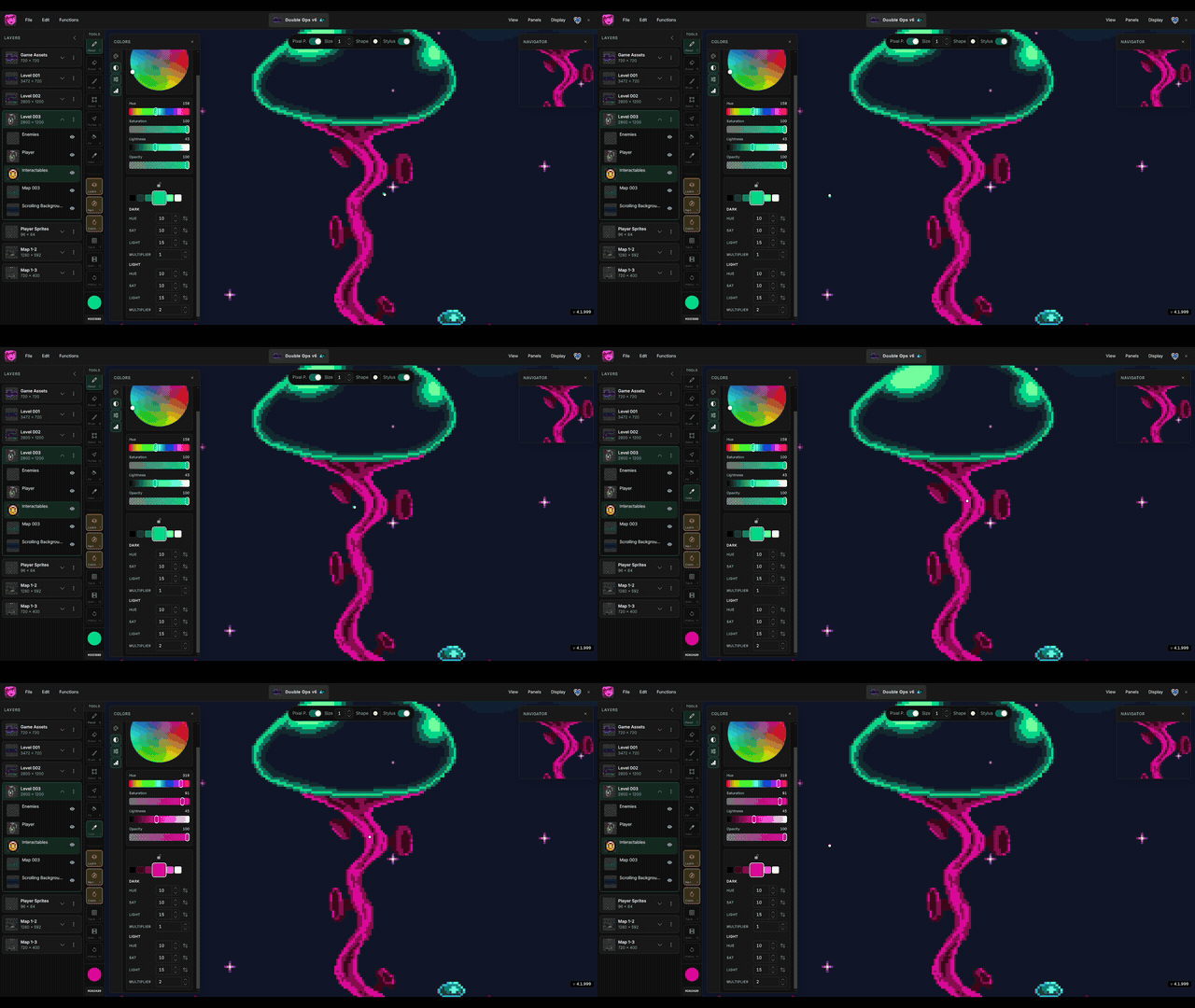
The clip in the header shows the Hue Shift tab building on-hue ramps. For the full Hue Shifter workflow, see Hue Shifter.
Tools panel color controls
At the bottom of the tools panel, the active color swatch and hex field give you quick access without opening the full colors window.
- Active color swatch — shows the current color. Click it to open or focus the colors panel.
- Hex field — click to edit the color as
#RGBor#RRGGBB. PressEnterto apply orEscapeto cancel.
On compact layouts the hex field hides to save space — use the colors panel or color picker tool for full editing.
Editor tabs
The colors panel has four tabs for picking and adjusting color. All tabs edit the same active color — switch between them based on what feels fastest for the task.
Palette
The default tab. Shows the name of your active palette and a swatch grid from that palette.
- Click a swatch to set the active color.
- Use the Change palette button (↻) to open the Palettes panel and switch to a different preset.
Sliders
Fine-tune color with three HSL sliders:
- Hue — 0–360° around the color wheel.
- Saturation — 0–100%, from gray to full intensity.
- Lightness — 0–100%, from black through the hue to white.
Slider tracks update live as you adjust other channels. Drag for continuous changes; use arrow keys on a focused slider for precise steps.
Wheel
A 2D hue and saturation wheel with a lightness slider below it.
- Drag on the wheel to set hue and saturation.
- Use the lightness slider to brighten or darken the result.
Wheel and sliders stay in sync — changing lightness on one tab updates the other.
Hue Shift
Build related light and dark colors from the active swatch. Click strip swatches to paint with variants, lock an anchor to keep the ramp rooted, and tune Hue / Sat / Light / Multiplier on each side. See Hue Shifter for the full workflow.
Active color
The active color is used by the pencil, brush, fill, and other drawing tools until you pick a new one. You can also sample from the canvas with the color picker tool (I) or hold A while drawing to eyedrop temporarily.