Download
 Browser
Overview
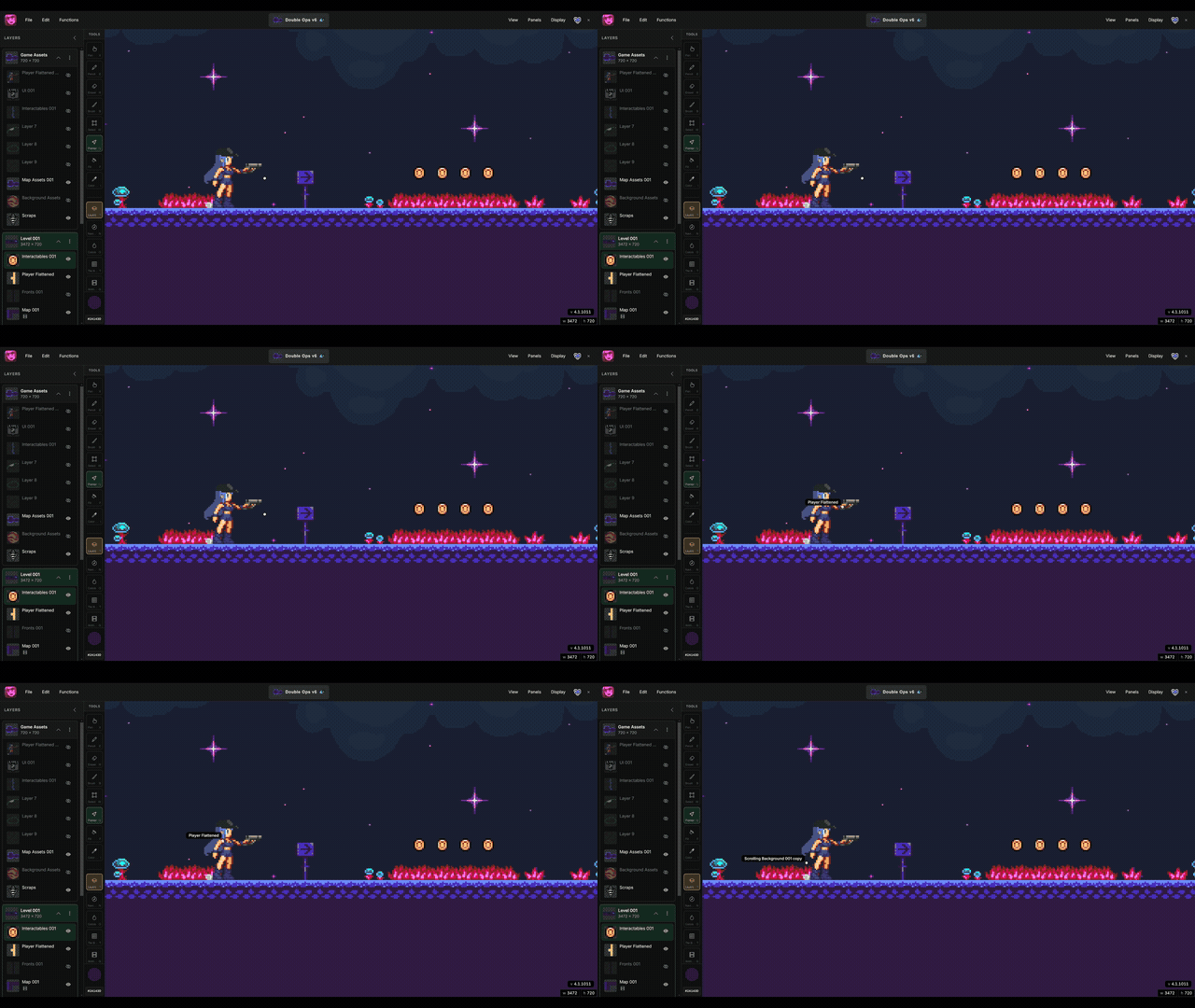
The clip in the header shows the pointer in use — hovering layers with Shift held, selecting a layer with a click, and resizing a stage from the canvas handles.
Select layers on the canvas
- Hold Shift and move the pointer over the canvas to see the name of the layer under the cursor.
- Click while hovering to select that layer — useful when the layers panel is crowded or you are working deep in a stack.
- You can also click a layer or stage row in the layers panel to select it.
Resize stages
- Select the Pointer tool (
Q). - Click the stage row in the layers panel (or select the stage another way).
- Drag the eight resize handles on the canvas overlay to grow or shrink the stage.
Existing pixels stay in place when you expand or shrink the stage bounds. For adding and switching stages, see Work With Stages.